Posts

How to add filters in gmail

Image
Using filters to automatically label emails will help tremendously in organizing your emails. Filters are applied automatically according to the settings you create. You can create numerous filters ahead of time to save time when cleaning up and organizing emails. Here is a video to show you how, as always just let me know if you have questions.

Preview Pane in Gmail

Image
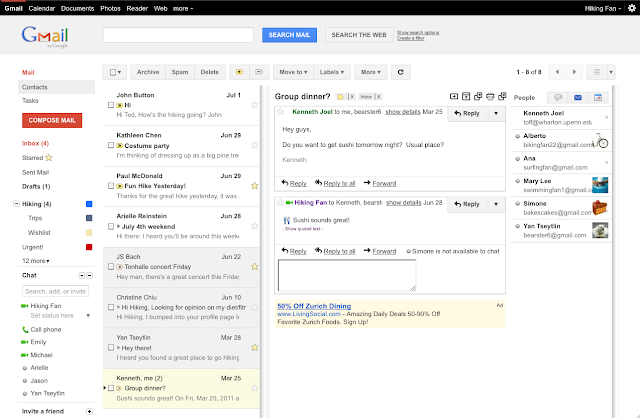
When checking email in gmail I really like the ease of being able to preview the message directly from my inbox. With the Lab Preview Pane you can do this easily. First, you will want to enable Preview Pane from the Labs tab in Gmail Settings.  After you enable Preview Pane from the Labs tab in Gmail Settings you’ll see a toggle button in the top right corner of your message list, which lets you switch between preview and list views. For those of you who have more vertical space you can also move the preview pane below your message list. You can enable this using the dropdown arrow next to the toggle button: If you’d like to remove the new layout, simply return to Gmail Settings and disable the lab. As always let me know if you need any help setting this up:) 

Keyboard Shortcuts in Gmail

I wanted to make you all aware of the option to enable Keyboard Shortcuts in Gmail. Go to the gear in the top right corner and select Settings. In settings under the General Tab you can turn Keyboard Shortcuts on or off. With keyboard shortcuts you can navigate through your email quickly and easily. Additionally, there is a lab which can allow for custom keyboard shortcuts which you can define yourself. Here is a link to a helpful document about keyboard shortcuts. If you need any help setting this up just let me know. https://support.google.com/mail/answer/6594?hl=en

How to open a word document in google docs

Image
I have had a few questions about opening a word document in google docs. Here is a quick video to show you how you can make a word document into a google doc so that you can edit and store it as a google doc.

Black Google Bar

Image
I wanted to let you all know that the black google bar, normally seen in any google app is no longer there. Here is a really short video to help you out with this:)

Reflector

How to transfer photos to your computer wirelessly

Image
Bump is an awesome app that allows you to contact info or transfer photos from your phone wirelessly. You can transfer to another phone or even your computer.  I must give credit to Mrs. Lisa Jones for introducing me to the bump app and I wanted to share this awesome trick with you. This will save tremendous time and effort.  1. First, you will need to download the Bump App 2. Go to Bump’s website:  https://bu.mp/ 3. Open the Bump App on your iPhone (or Android phone) 4.  Select the photos you want to share. 5. Tap the spacebar with your iPhone or Android phone. ( You kind of have to shake your phone when you hit the spacebar, it took me a few tries)  6.  Bump will automatically import your photos. 7.  The pictures will show up on the bu.mp website. You can download and save the photos then. Thats it....See I  told you it was easy:)